This article explains how to access View Campaign Details to consult the metrics or statistics of each campaign and how to interpret the main sections in Audit - Campaign Details for different components.
Campaign metrics allow analysis of user performance and the progress of the awareness program by component. In SMARTFENSE, these metrics are mainly accessed from View Campaign Details and from Audit views that consolidate information by campaigns and users.
Access to View Campaign Details
Access from Audit to Campaigns by Component
Audit - Campaign Details by Component
Audit - Campaign Details of Interactive Modules
Audit - Campaign Details of Videos
Audit - Campaign Details of Video Games
Audit - Campaign Details of Newsletters
Audit - Campaign Details of Phishing
Audit - Campaign Details of Smishing
Audit - Campaign Details of Ransomware
Audit - Campaign Details of USB Drop
Audit - Campaign Details of Exams
Audit - Campaign Details of Surveys
Access to View Campaign Details
You can access View Campaign Details from different sections:
-
From Campaigns > Calendar, through the pie chart icon.
-
From Campaigns > Campaign List, in the Actions column, by clicking the pie chart icon.
Access from Audit to Campaigns by Component
You can also access from Audit > Assigned Actions > Campaigns a view with all campaigns by components, including past, future (planned), and deleted events.
From there, for each component, it is possible to enter the details of each individual campaign.
Metrics by User
In addition to the campaign view, SMARTFENSE allows analyzing metrics from the user perspective:
- In Audit > Assigned Actions > Users > Overview the number of campaigns participated in by each user for each component is displayed.
- In Audit > Assigned Actions > Users > Components > Interactive Modules (and equivalently for other components), indicators for all campaigns participated in by each user within that component are shown.
From this section, it is also possible to use:
- Download the details of all Interactive Modules campaigns
-
Download the details of all Interactive Modules campaigns filtered by topic
Audit - Campaign Details by Component
In the Audit - Campaign Details views, filters such as Groups, Functional Areas, Hierarchical Levels, and Smart Groups can be applied.
Each component presents similar sections, with variations depending on the type of interaction and available metrics.
The Number of assignments column is available in the Users assigned to the campaign tab for components that support the recurring assignment mode with relative duration and automatic reassignment enabled. It indicates how many times each user was assigned within the campaign, whether due to not having completed, not having passed, or not having started the content. This field is also available in the CSV/Excel export and in the corresponding API endpoints.
Download all certificates
Available on the Users assigned to the campaign tab, both for Interactive Modules and Exams campaigns, when certificate issuance is enabled for the component.
From the Download all certificates button, located next to Export, you get a single compressed file with the certificate of each user who completed the campaign. It's the same document downloaded individually from the Certificates column, with one file per person, named with their last name, first name and username. The compressed file also includes a summary listing who each certificate belongs to.
The file is prepared in the background, so you can keep working in the meantime, and the download starts on its own once it's ready.
The button only appears when there's something to deliver: it's not shown if no user has completed the campaign yet, or if certificate issuance is disabled for the component in your organization's settings.
In large campaigns, the action opens a list of the parts the download is split into, each showing the number of certificates it contains and the people it opens and closes with. Download each part separately.
The bulk download does not email the certificate to any user. That's what the resend action on each row is for.
Audit - Campaign Details of Interactive Modules
This view contains 4 sections:
1. Summary
Includes the funnel chart with campaign statistics and information about the component, status, topic, start date, and expiration date.
The chart shows the indicators Sent, Started, and Completed, with quantities and percentages.
2. Users Assigned to the Campaign
Displays a table with data such as: username, first name, last name, email, employee ID, Groups, Functional Areas, Hierarchical Levels, Topic, Sent, Started, Completed, Estimated Time, Time Spent, Difficulty of content and Certificates.
Allows:
- Pagination up to 100 records.
- Search users with the Search field.
- Export with the Export button in Excel or CSV, including:
- Excel respecting the filters applied on the table
- CSV respecting the filters applied on the table
3. Charts
Presents four downloadable charts, each offering a different perspective on campaign performance:
- Funnel Chart: distribution of users by status (Sent, Started, Completed) with counts and percentages.
- Timeline of Interactions: evolution of Sent, Started, and Completed interactions over time.
- Time until completion: distribution of the time users took to complete the content, grouped by ranges.
-
Completion progress vs. deadline: actual and projected cumulative completion curves compared against the expiration date; allows you to anticipate whether the campaign will close with a backlog.
4. Information and Actions
Includes data such as Campaign Type, Name, Description, Combination of selected groupings, Groups, Topic/Scenario, Content Type, Start Date, Expiration Date (with the Modify Date button if the campaign has not expired), Automatic Reminder Send Date, the View Sent Reminders button, and the Send Reminders Now button if the campaign is ongoing.
Additionally, it includes indicators such as Assigned, Sent, Started, Completed, Status, and Test Campaign.
Buttons Create Group and Create Inverse Group are shown for each indicator whose value is different from 0.
Additional actions:
- If the campaign is real: Mark campaign as test button.
- If the Status is In Progress: Stop campaign button.
From the View Campaign History button, you can access Audit - Campaign History with the full details.
Audit - Campaign Details of Videos
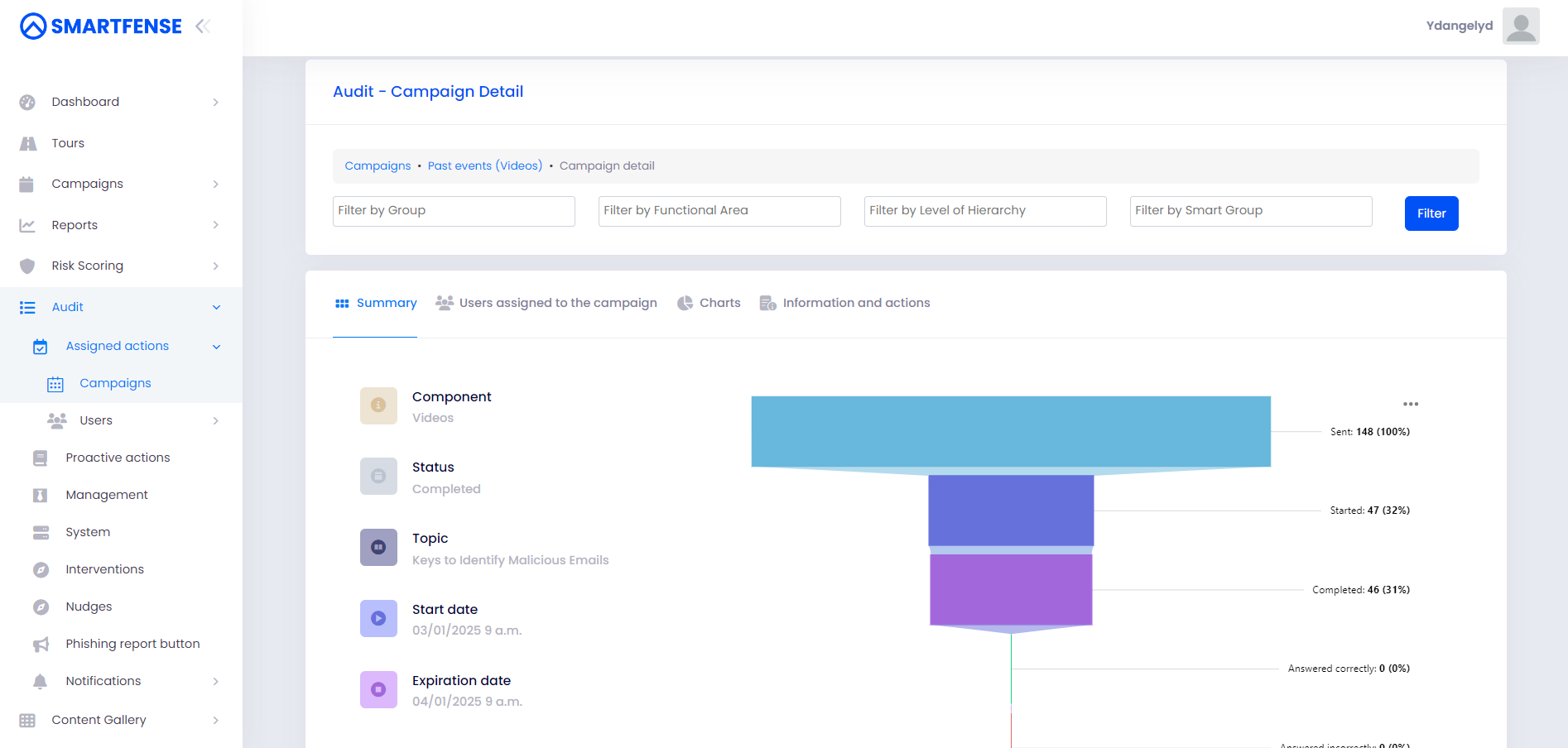
This view contains 4 sections and maintains the same general logic of filters and export.
In Summary, in addition to Sent, Started, and Completed, it includes the indicators Answered Correctly and Answered Incorrectly, with quantities and percentages.
Charts
Presents four downloadable charts, each offering a different perspective on campaign performance:
- Funnel Chart: distribution of users by status (Sent, Started, Completed) with counts and percentages.
- Timeline of Interactions: evolution of Sent, Started, and Completed interactions over time.
- Time until completion: distribution of the time users took to complete the content, grouped by ranges.
- Completion progress vs. deadline: actual and projected cumulative completion curves compared against the expiration date; allows you to anticipate whether the campaign will close with a backlog.
In “Users assigned to the campaign”, the table displays data such as: username, first name, last name, email, employee ID, Groups, Functional Areas, Levels of Hierarchy, Topic, Sent, Started, Completed, Answered correctly, Answered incorrectly, Estimated time, and Difficulty of content. It also includes a "Charts" section.
In Information and Actions, additional fields such as Notification and Assignment and Reminder URL are included, along with the rest of the available indicators and actions.
The View Campaign History button allows access to Audit - Campaign History.
Audit - Campaign Details of Video Games
This view contains 4 sections:
- Summary with Sent, Started, and Completed.
- Users Assigned to the Campaign with export from Export and information on Estimated Time and Difficulty of content.
-
Charts with main indicators (Funnel Chart, Timeline of Interactions, Time until completion, Completion progress vs. deadline) and a LeaderBoard showing Position, Username, and various Scores (Best, First, and Last), with the Export Scores of All Users button.
-
Information and Actions with campaign fields and available actions such as Mark campaign as test and Stop campaign.
Audit - Campaign Details of Newsletters
This view contains 5 sections:
1. Summary
Includes indicators such as Sent, Opened, Answered Correctly, and Answered Incorrectly. It also incorporates the status of false positives.
2. False Positives
Indicates if software actions were detected instead of user actions. Includes resources such as:
- List of interactions generated by software.
- Number of interactions per user.
- IP addresses that interacted in the campaign.
- How SMARTFENSE identifies interactions generated by software.
From this section, the Reprocess Campaign Statistics button is used to update results after adjusting filters to hide statistics generated by software.
3. Users Assigned to the Campaign
Includes a table with indicators such as Sent, Opened, Answered Correctly, Answered Incorrectly, Estimated Time and Difficulty of content, with export from Export.
4. Charts
Presents five downloadable charts, each offering a different perspective on campaign performance:
- Funnel Chart: distribution of users by status (Sent, Opened, Correctly answered, Incorrectly answered) with counts and percentages.
- Timeline of Interactions: evolution of indicators over time.
- Time until completion: distribution of the time users took to complete the content, grouped by ranges.
- Completion progress vs. deadline: actual and projected cumulative completion curves compared against the expiration date; allows you to anticipate whether the campaign will close with a backlog.
-
Comprehension validation: donut chart showing the distribution of responses to the reading validation question (Correctly answered, Incorrectly answered, No response).
5. Information and Actions
Includes fields and indicators specific to the component and actions such as Mark campaign as test and Stop campaign.
The View Campaign History button allows access to Audit - Campaign History.
Audit - Campaign Details of Phishing
This view contains 5 sections and adds component-specific metrics.
In Summary, in addition to Sent and Opened, it includes indicators such as:
- Clicks on the link
- Data entered
- Teachable moments sent by email
- Teachable moments opened
- Teachable moments answered correctly
- Teachable moments answered incorrectly
- Reported phishing campaigns
Includes a False Positives section and the Reprocess Campaign Statistics button.
Charts
Presents six downloadable charts with complementary perspectives on campaign performance:
- Funnel Chart: distribution of users by status (Sent, Opened, Click on the link, Data entry, Educational Moments, and Reported campaigns) with counts and percentages.
- Timeline of Interactions: evolution of Phishing indicators over time.
- Cumulative drops curve: cumulative evolution of Click on the link rate and Data entry across previous campaigns; allows identifying improvement or deterioration trends.
- Exposure window: users' reaction speed to the attack. Shows Reporting rate, Time between fastest repetition, and for Click on the link and Data entry: time to fall and exposure window percentage.
- Decision time: distribution of the time users took to fall (Click on the link vs. Data entry), grouped by ranges.
-
Heat map: matrix of risk level (High, Medium, Low) vs. occurrence probability (Low, Possible, Moderate, High, Very high), exportable.
In Information and Actions, fields such as Send Type, Sample Send, Password Entry, Host Name, Domain Name, and Phishing URL are included, along with standard indicators and actions.
The View Campaign History button allows access to Audit - Campaign History.
Audit - Campaign Details of Smishing
This view contains 4 sections and presents indicators such as:
- Sent
- Delivered
- Clicks on the link
- Data entered
- Teachable moments sent by email
- Teachable moments opened
- Teachable moments answered correctly
- Teachable moments answered incorrectly
In Charts includes: Funnel Chart, Timeline of Interactions, Cumulative drops curve, Decision time, and Heat map.
In Information and Actions, fields such as Smishing URL and settings related to the Teachable Moment are included.
The View Campaign History button allows access to Audit - Campaign History.
Audit - Campaign Details of Ransomware
This view contains 5 sections and includes specific indicators such as:
- Ransomware downloaded
- Ransomware opened
- Ransomware attachments opened
- Possible encryption in user folder
- Teachable moments sent by email
- Teachable moments opened
- Teachable moments answered correctly
- Teachable moments answered incorrectly
- Reported ransomware campaigns
Includes a False Positives section and the Reprocess Campaign Statistics button.
In Charts includes: Funnel Chart, Timeline of Interactions, Cumulative drops curve, Exposure window, Decision time, and Heat map.
In Information and Actions, fields such as Ransomware URL, Host Name, and Domain Name are included, along with options for the Teachable Moment.
The View Campaign History button allows access to Audit - Campaign History.
Audit - Campaign Details of USB Drop
This view contains 4 sections and presents component-specific metrics:
1. Summary
Includes a chart with indicators such as File Opened and Macros Enabled, with interaction counts.
2. Interactions
Shows:
- Summary by file with: File, Extension, Number of times opened, Number of times Macros were enabled.
- Interaction logs over time with: Interaction Date, Interaction, File Name, First Name, Username, Device Name, Local IP Address, Public IP Address, and Operating System.
Allows pagination up to 100 and export with the Export button in Excel or CSV.
3. Charts
Charts includes: Interactions over time and Time until first use.
4. Information and Actions
Includes Campaign Type, Name, Description, Combination of selected groupings, Start Date, Expiration Date, Status, and Test Campaign, as well as Mark campaign as test and Stop campaign when applicable.
The View Campaign History button allows access to Audit - Campaign History.
Audit - Campaign Details of Exams
This view contains 4 sections and presents indicators such as:
- Sent
- Started
- Passed
- Not Passed
In Users assigned to the campaign, the table includes fields such as Estimated time, Time spent, Content difficulty, Percentage of correct answers, Attempts used and Certificates, with export available from Export.
Charts
Presents eight downloadable charts with complementary perspectives on campaign performance:
- Funnel Chart: distribution of users by status (Sent, Started, Passed, Failed) with counts and percentages.
- Timeline of interactions: evolution of Sent, Started, Passed, and Failed over time.
- Time until completion: distribution of the time users took to complete the exam, grouped by ranges.
- Completion progress vs. deadline: actual and projected cumulative completion curves compared against the expiration date; allows you to anticipate whether the campaign will close with a backlog.
- Exam status: donut chart with the distribution of users by final result (Passed, Not approved, Started but not finished, Not started).
- Score distribution: bar chart with the distribution of users by score range, with a cutoff line at the configured passing threshold.
- Attempts made: bar chart with the number of users by number of attempts; includes the Did not pass category for those who exhausted their attempts without passing.
- Correct answers per question: horizontal bar chart with the % of correct answers for each exam question; allows you to identify which questions present the greatest difficulty.
In Information and Actions, component-specific settings such as Passing Percentage, Available Minutes, Number of Attempts Allowed to Pass the Exam, Question Order, and Feedback are included.
Includes the View Exam Answers button and the Download All Answers button.
The View Campaign History button allows access to Audit - Campaign History.
| Note: In Exam statistics, the answers corresponding to the user's latest attempt are always recorded. If the user did not answer any questions and the attempt time expired, the answers from previous attempts are not retained, leaving the record with “zero answers”. |
Audit - Campaign Details of Surveys
This view contains 4 sections and presents indicators such as:
- Sent
- Started
- Completed
Charts includes: Funnel Chart, Timeline of interactions, Time until completion, and Completion progress vs. deadline.
In Information and Actions, the Anonymous field is included, along with standard indicators and actions.
Includes the View Survey Answers button to view the number of responses per question.
The View Campaign History button allows access to Audit - Campaign History.
💡 Best Practices
- Use Campaigns > Calendar to quickly access View Campaign Details during operational monitoring.
- Export from Export using Excel respecting the filters applied on the table or CSV respecting the filters applied on the table when you need consistent reports for a partner or audit.
- Apply filters by Groups and Smart Groups to analyze comparable results between populations.
- Review the False Positives section and use Reprocess Campaign Statistics before presenting executive results in Newsletters, Phishing, or Ransomware.