The Calendar allows you to view, schedule, and manage campaigns throughout the year. From this view, you can identify their statuses, access statistics, and manage actions such as creation, editing, deletion, and grouping.
Configuration available on our platform in the Campaigns > Calendar section.
Overview
The Calendar displays the campaigns created on the platform, organized by month and by component.
Hovering the mouse over a campaign will display a popover with additional information.
| Note: The Calendar only shows campaigns up to 12 months in the past. To consult statistics of earlier campaigns, use the Audit section. |
Additionally, this section allows you to schedule new campaigns, edit them, delete them, and view their statistics.
Campaign statuses
Campaigns in SMARTFENSE can have different statuses:
Not started: The campaign was created and has not yet reached its start date. Only campaigns in this status can be edited or deleted.
In progress: The campaign has reached its start date. During this status:
- The platform sends emails as appropriate.
- Statistics are collected based on user interactions.
- Only the end date can be modified.
- It is not possible to edit the content, recipients, or delete the campaign.
Completed: The campaign has reached its expiration date. In this status:
The platform no longer collects statistics.
If a user tries to access links associated with the campaign, a 404 error view will be shown.
Platform error: If an error occurs in sending one or more emails:
- The Calendar shows a warning.
- Clicking on it allows access to the campaign details for more information.
- The platform attempts to automatically resend the affected emails.
- To receive a notification for these types of situations, go to Settings > Administrative reports.
Campaign CRUD
Create a New campaign: Hover the mouse over the New campaign button located at the top left. Select the desired component.
If you want to create a test campaign, check the corresponding option in the Campaign data section during creation.
These campaigns do not affect reports or generate audit logs.
Edit a campaign: To edit a Not started campaign, locate it on the Calendar and click the Edit button to the right of the status.
Delete a campaign: To delete a Not started campaign, locate it on the Calendar and click the Delete button.
View statistics: To view the statistics of a campaign In progress or Completed, click the Statistics button located to the right of the status.
Important clarifications
When the start date of a campaign arrives, users are assigned automatically, provided that:
They are not assigned to another campaign In progress, and
That in-progress campaign is of the same component, and
It uses the same topic/scenario.
Example:
If a user participates in an in-progress Newsletters campaign with the topic “What is Phishing?” and another campaign of the same component and same topic starts, they will not be assigned.
If the topic is different, they will be assigned.
Other Calendar functions
Available filters
The Calendar allows combining several filters to streamline campaign search and display:
- Filter by type: displays only Real or Test campaigns.
- Filter by level: toggles between individual campaigns or grouped campaigns.
- Filter by status: allows selecting Finished, Not started, or In progress campaigns.
- Filter by mode: allows selecting campaigns created with the Single initial assignment with specific expiration date or Recurring assignment with relative duration modality.
- Filter by component: depending on contracted components: Interactive Module, Newsletters, Videos, Video Games, Phishing, Smishing, Ransomware, USB Drop, Exams, Surveys.
- Filter by program: displays only campaigns belonging to a specific program.Previous month / Next month
The buttons located at the top right allow moving 12 months forward or backward.
Campaign Grouping
This feature allows grouping campaigns of the same component.
In the Calendar, grouped campaigns are displayed as a single entity.
How to group campaigns
Select the campaigns by checking the checkbox.
Click the Group Campaigns button.
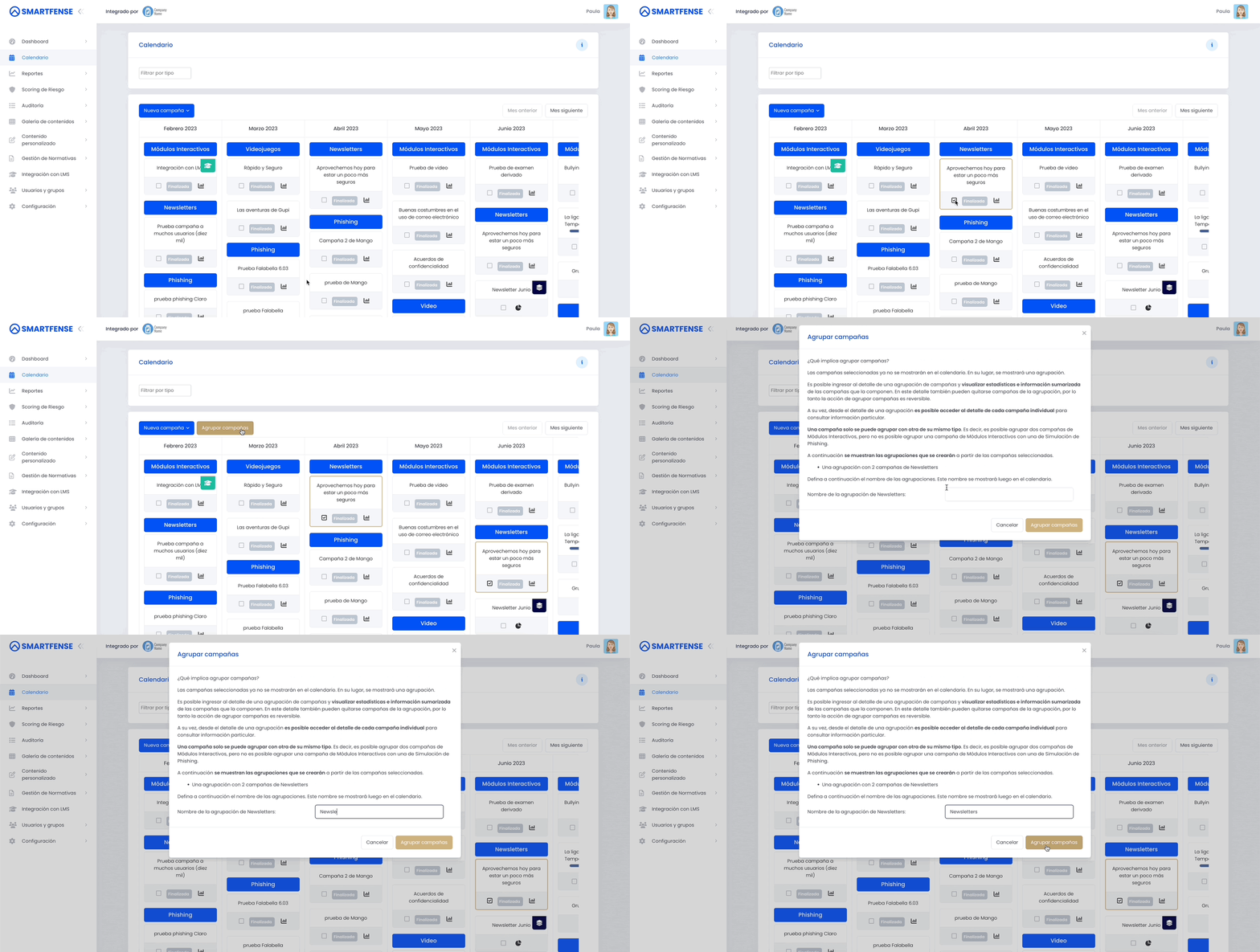
Groups are identified by the folder icon.
To access the campaign grouping details, enter the Grouping Detail.
There you can see:
- On the left, the campaigns that make up the group, showing the campaign name, status, and from the eye symbol you can access individual statistics for that campaign or remove the campaign from the group.
- On the right, you can see a Funnel chart with summarized information of the campaigns that compose the group.
- Below, you will find the users table with all the summarized information of the campaigns that compose the group, with a button to Export this table in Excel or CSV format. As with all our tables, it has a button to show more records and a search function.
💡Best practices
Regularly check the Calendar to monitor campaigns about to start or with warnings.
Use the Campaign Grouping function to organize extensive or periodic initiatives.
Take advantage of the Filter by type option to maintain a clear view according to the work context.
Periodically check Settings > Administrative reports to enable notifications for errors.